



Set up the PostHog Slack app
Contents
You need two integrations to use @PostHog in Slack: one workspace-wide Slack connection per PostHog project (set up by a project admin), and a personal GitHub connection per teammate who wants to ship code.
1. Connect Slack to your project
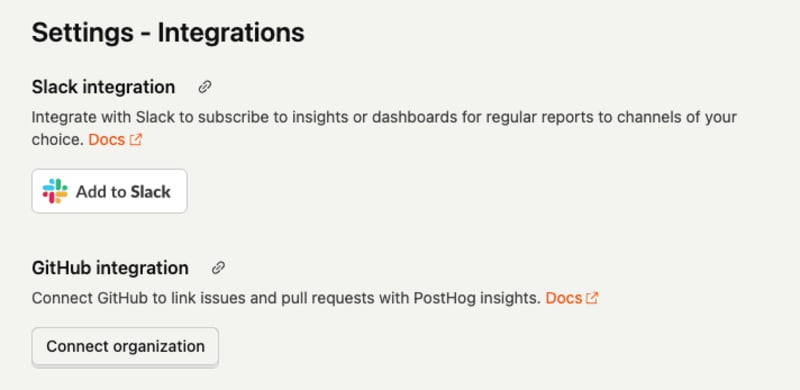
Head to Settings → Integrations in your PostHog project and click Add to Slack in the Slack integration section. Approve the requested scopes - you'll need to be a project admin to install.
To talk to the bot in a channel, @-mention it - Slack will prompt you to invite it - or invite it explicitly with /invite @PostHog. The first time it sees a mention, it matches your Slack email to your PostHog account, so make sure you're signed in to the same org on both sides.
The bot picked up new OAuth scopes on 2026-05-04 (app_mentions:read, users:read, users:read.email, chat:write, channels:history, groups:history, reactions:write). If your workspace was connected before that date, head back to Add to Slack and re-approve - otherwise the bot will fail with a missing-scope error on the next mention.
2. Connect your personal GitHub (mandatory for coding)
A personal GitHub integration is required for the coding agent to run. Without one, the bot refuses to start any repo-bound task and replies in-thread:
I can't start this task yet — you haven't connected your personal GitHub. Connect it so I can open the pull request as you, then mention me again.
This is a hard block on the whole task, not just the PR step — the agent doesn't plan, edit, or run anything until you've connected GitHub. Each teammate who wants to ship code connects their own account at Settings → Personal integrations and clicks Connect GitHub. You can connect multiple accounts or organizations - the agent uses them for repo access, commit attribution, and pull request authorship.
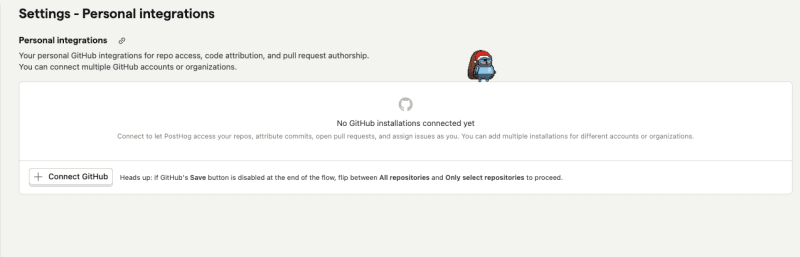
If GitHub's Save button is greyed out at the end of the install flow, toggle between All repositories and Only select repositories to wake it up - it's a quirk of the GitHub OAuth UI.
If you start a task before connecting, the agent stops and posts a Connect GitHub button in the thread. Click it, finish the OAuth flow, and re-mention the bot - the task picks up where it left off.
Pick a project (multi-integration workspaces)
A single Slack workspace can be connected to more than one PostHog project. When that happens, the bot won't guess which project your mention belongs to - it asks you to pick one first:
This Slack workspace is connected to multiple PostHog projects:
- Acme · Production (id
42)- Acme · Staging (id
7)Use
@PostHog project <id>to pick one — that also saves it as your default.
Pick a project once and the bot remembers it for you across channels and threads in this workspace.
| Command | What it does |
|---|---|
@PostHog project | Show which PostHog project your mentions route to in this workspace, and list the alternatives |
@PostHog project <id> | Set the PostHog project your mentions route to in this workspace |
The bot resolves a target with this precedence: thread context (continuing an existing task) → your personal default → workspace-wide default (set by support, no UI yet) → the only connected project → picker. Personal defaults always win over the workspace fallback, so each teammate can route their own mentions independently.
If your workspace is only connected to a single PostHog project, this section doesn't apply - the bot routes there automatically.
Next steps
Once both integrations are connected and (if needed) you've picked a project, you're ready to start a task. The full command reference covers everything @PostHog accepts.